# AI Assistant Chrome Extension
## Overview
AI Assistant is a Chrome extension for live meeting/interview support. It captures audio, transcribes speech, and generates concise AI responses with configurable chat and STT providers.
Current extension version: `1.1.0`
## Screenshots
### Main side panel
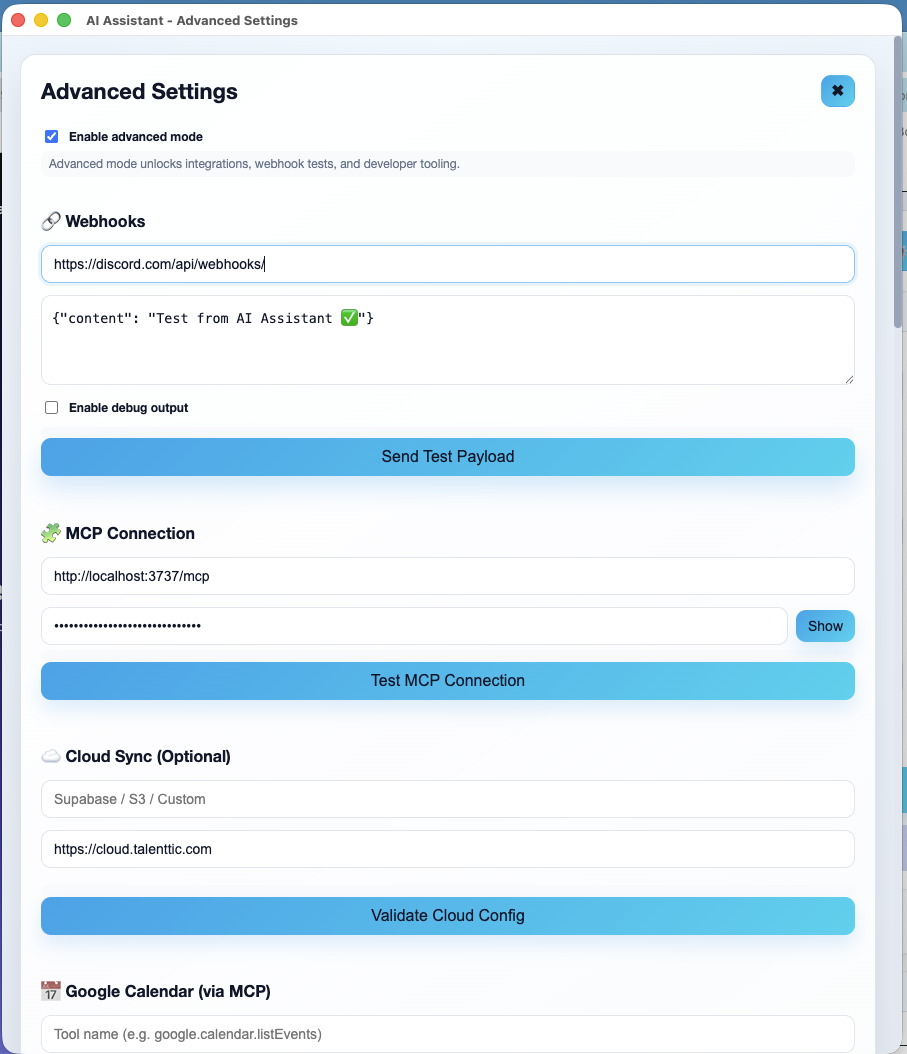
### Advanced setup
## Table of Contents
- [Documentation Index](#documentation-index)
- [Quick Start (2 Minutes)](#quick-start-2-minutes)
- [Features](#features)
- [Installation](#installation)
- [Usage](#usage)
- [Custom Sessions (Context Profiles)](#custom-sessions-context-profiles)
- [Automation in Side Panel](#automation-in-side-panel)
- [Plans & Roadmap](#plans--roadmap)
- [Recent Improvements](#recent-improvements)
- [Privacy and Security](#privacy-and-security)
- [Troubleshooting](#troubleshooting)
- [Contributing](#contributing)
- [License](#license)
- [Disclaimer](#disclaimer)
## Documentation Index
Use this `README.md` as the main entrypoint. Additional docs:
- Product roadmap and task tracking: `Plans_and_Todo.md`
- AI provider setup/details: `AI_PROVIDERS_GUIDE.md`
- New features and updates: `NEW_FEATURES_GUIDE.md`
- Local self-hosted STT bridge: `local_stt_bridge/LOCAL_STT_BRIDGE_GUIDE.md`
## Quick Start (2 Minutes)
1. Load the extension in `chrome://extensions` (Developer Mode → Load unpacked).
2. Open the side panel and set **AI Provider**, **Model**, and **API key**.
3. In **Assistant Setup**, choose **Speech-to-Text Provider** (`OpenAI`, `Local faster-whisper`, or `Browser`).
4. Configure STT quality controls (`Language Mode`, optional `Forced language`, `Task`, `VAD`, `Beam size`).
5. Use **Test STT Connection** to validate STT endpoint/key.
6. In **Session Context**, pick a profile (or create one in **Context → Manage Profiles**).
7. (Optional) Pick an **Automation Preset**.
8. Click **Start Listening**.
## Features
- Real-time audio capture (tab, mic, or mixed mode)
- Speech-to-text transcription with live overlay
- AI-powered responses with multiple providers (OpenAI, Anthropic, Google, DeepSeek, Ollama)
- Persistent side panel interface
- Secure API key storage
- Context profiles (prebuilt + custom) with profile-scoped context isolation
- Context management (upload or paste documents per profile)
- Speed mode (faster, shorter responses)
- Automation preset selector in side panel (automatic or one selected automation)
- Separate STT settings (OpenAI Whisper, Browser STT, or local faster-whisper bridge)
- Multilingual STT controls (auto/forced language, task mode, VAD, beam size)
- Multi-device demo mode for remote access
- Overlay controls: drag, resize, minimize, detach, hide/show
- Mic monitor with input device selection and live level meter
## Installation
### Prerequisites
- Google Chrome browser (version 114 or later)
- An OpenAI API key
### Steps
1. Clone this repository or download the source code as a ZIP file and extract it.
2. Open Google Chrome and navigate to `chrome://extensions/`.
3. Enable "Developer mode" by toggling the switch in the top right corner.
4. Click on "Load unpacked" and select the directory containing the extension files.
5. The AI Assistant extension should now appear in your list of installed extensions.
## Usage
1. Click on the AI Assistant icon in the Chrome toolbar to open the side panel.
2. Select your provider/model and save the provider API key.
3. In **Assistant Setup**, configure **Speech-to-Text Provider**:
- `OpenAI Whisper` for hosted tab/mixed transcription
- `Local faster-whisper bridge` for self-hosted STT (`local_stt_bridge/LOCAL_STT_BRIDGE_GUIDE.md`)
- `Browser SpeechRecognition` for mic-oriented local recognition
- Tune multilingual/quality options:
- `Language Mode`: `Auto-detect` or `Force language`
- `Forced language`: language code (for example `en`, `fr`, `de`, `ar`)
- `Task`: `Transcribe` or `Translate to English`
- `VAD`: enable/disable silence filtering
- `Beam size`: decoding quality/performance tradeoff (default `5`)
- Click **Test STT Connection** before starting live capture
4. In **Session Context**, choose a profile (Interview/Standup/Sales or your custom profile).
5. (Optional) In **Automation Preset**, choose:
- `Automatic` to run all enabled automations that match each trigger, or
- a single automation to run only that one for session start/end.
6. Click **Start Listening** to begin capturing audio from the current tab.
7. Click **Stop Listening** to end the audio capture.
## Custom Sessions (Context Profiles)
Custom session behavior is configured through **profiles**.
1. Open side panel → **Context** → **Manage Profiles**.
2. Click **New Profile**.
3. Set:
- Profile name (for example: `Interview (Backend)` or `Meeting (Sales Discovery)`)
- Mode (`interview`, `meeting`, `standup`, or `custom`)
- System prompt (instructions specific to this profile)
4. Click **Save Profile**.
5. Back in **Session**, select that profile in **Session Context** before clicking **Start Listening**.
Each profile uses its own scoped context store to reduce prompt/context leakage between use cases.
## Automation in Side Panel
- Use **Automation Preset** to choose how automations run for the current session.
- Use **Run Selected Automation Now** to manually test from the side panel.
- Use **Advanced Settings (⚙️)** for full automation editing (actions, MCP tools, webhook args, triggers, approval behavior).
## Plans & Roadmap
- See the evolving roadmap and to-do list in `Plans_and_Todo.md`.
## Recent Improvements
- Larger, lighter overlay with a visible resize handle.
- Overlay hide/show controls.
- Mic monitor with input device selection and live level meter.
- Auto-open assistant window option after Start Listening.
- Better async message handling in content scripts.
## Privacy and Security
- The extension only captures audio from the current tab when actively listening.
- Your OpenAI API key is stored securely in Chrome's storage and is only used for making API requests.
- No audio data or transcripts are stored or transmitted beyond what's necessary for generating responses.
## Troubleshooting
- Ensure you have granted the necessary permissions for the extension to access tab audio.
- If you're not seeing responses, check that your API key is entered correctly and that you have sufficient credits on your OpenAI account.
- If local STT on a public domain keeps failing with `Invalid HTTP request received`, check protocol mismatch:
- `http://` endpoints on HSTS domains may be auto-upgraded to `https://` by Chrome.
- Use a proper HTTPS reverse proxy in front of the STT service, or use localhost/IP for plain HTTP testing.
- For any issues, please check the Chrome developer console for error messages.
## Contributing
Contributions to the AI Assistant are welcome! Please feel free to submit pull requests or create issues for bugs and feature requests.
## License
[MIT License](LICENSE)
## Disclaimer
This extension is not affiliated with or endorsed by OpenAI. Use of the OpenAI API is subject to OpenAI's use policies and pricing.